The Anatomy of My Home Server: A Pragmatic Self-Hosted Architecture
A deep dive into the networking, proxying, and deployment automation behind plutolab.org.
A couple of months ago, I wrote about why I self-host. Building features in Node.js and TypeScript for a SaaS product all day is great, but managed infrastructure often abstracts away the gritty details of how code actually gets served to users. I wanted to confront the full stack: networking, security, routing, and deployment.
So, I repurposed an old laptop running Ubuntu Server. It now powers plutolab.org, my project documentation, and my own Git instance.
Here is a deep dive into how the architecture is actually wired together, the challenges of hosting on a residential network, and the scripts that keep it running.
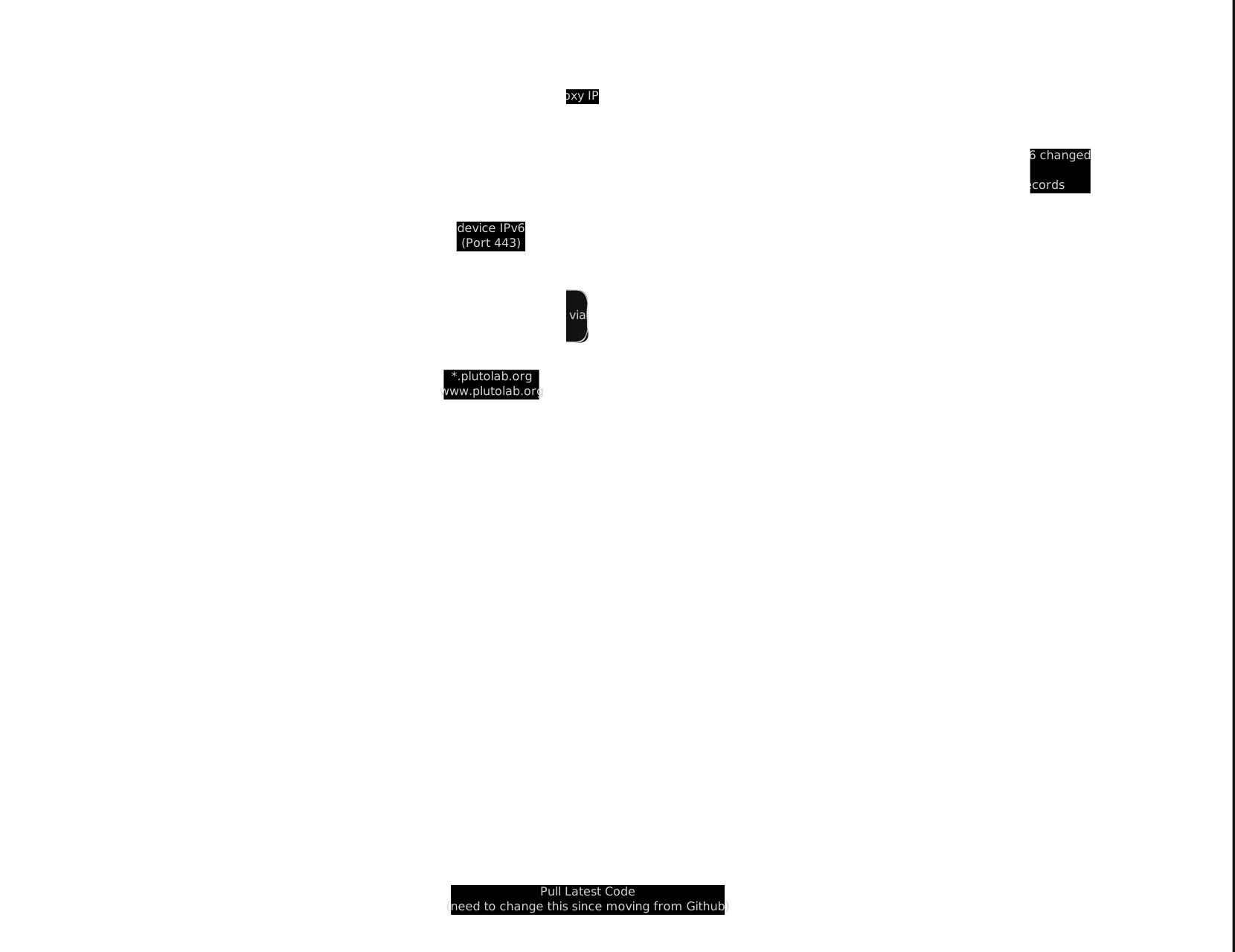
The Network Edge: Tackling the Dynamic IP Problem
Hosting anything at home immediately introduces a networking headache: residential ISPs do not give you a static IP. The IP address assigned to my router can change at any time, which would immediately break my DNS records. Furthermore, dealing with Carrier-Grade NAT (CGNAT) on IPv4 meant I needed to rely heavily on IPv6.
To solve this, I use Cloudflare as my DNS provider and proxy. Instead of manually updating my DNS records every time my ISP assigns a new IPv6 address, I wrote a simple bash script that runs via cron every 5 minutes.
It checks my server's current global IPv6 address, compares it against Cloudflare's records via their API, and pushes an update only if there's a drift.
#!/bin/bash

CF_API_TOKEN="[REDACTED]"
ZONE_ID="[REDACTED]"
RECORD_ID="[REDACTED]"
DNS_NAME="plutolab.org"

# Get local IPv6 (global scope)
CURRENT_IP=$(ip -6 addr show scope global | awk '/inet6/ {print $2}' | cut -d/ -f1 | head -n 1)

if [ -z "$CURRENT_IP" ]; then
  echo "No global IPv6 found. Exiting."
  exit 1
fi

# Get Cloudflare record IPv6 using wget
CF_IP=$(wget -qO- \
  --header="Authorization: Bearer $CF_API_TOKEN" \
  --header="Content-Type: application/json" \
  "https://api.cloudflare.com/client/v4/zones/$ZONE_ID/dns_records/$RECORD_ID" \
  | jq -r '.result.content')

# Compare
if [ "$CURRENT_IP" = "$CF_IP" ]; then
  echo "IPv6 unchanged ($CURRENT_IP)"
  exit 0
fi

# Update IPv6 record using wget
UPDATE=$(wget -qO- \
  --method=PUT \
  --header="Authorization: Bearer $CF_API_TOKEN" \
  --header="Content-Type: application/json" \
  --body-data="{\"type\":\"AAAA\",\"name\":\"$DNS_NAME\",\"content\":\"$CURRENT_IP\",\"ttl\":1,\"proxied\":true}" \
  "https://api.cloudflare.com/client/v4/zones/$ZONE_ID/dns_records/$RECORD_ID")

echo "$UPDATE" | grep -q '"success":true'

if [ $? -eq 0 ]; then
  echo "Updated IPv6: $DNS_NAME → $CURRENT_IP"
else
  echo "Update failed:"
  echo "$UPDATE"
fi
This forces you to think about idempotency. By checking the current IP before firing a PUT request, I avoid hammering the Cloudflare API unnecessarily.
The Gateway: Nginx as a Reverse Proxy
Once traffic hits my home router, it's forwarded to the Ubuntu server. For security and simplicity, I only expose a single port to the outside world. Everything else sits safely behind a firewall (UFW).
Nginx acts as the traffic cop here. It looks at the incoming request's subdomain and routes it to the correct internal service or static directory.
- git.plutolab.org is proxy-passed to a local Forgejo container running on port 3000.
- kosh.plutolab.org serves static documentation.
- plutolab.org serves the static HTML, CSS, and JS for my main site.
When you spend your days working across the stack on a SaaS product, it's easy to take things like caching and security headers for granted—often relying on a managed CDN or application framework to handle them automatically. Writing the Nginx configuration manually forces you to think about exactly how browsers should consume your files.
Here is a look at the configuration for the main website:
# Website
server {
    listen 80;
    listen [::]:80;

    server_name plutolab.org www.plutolab.org;

    root /var/www/plutolab-website;
    index index.html index.htm;

    # 1. Base Routing and HTML Caching
    location / {
        try_files $uri $uri/ =404;
        add_header Cache-Control "no-cache";
    }

    # 2. Short-term Cache for Styles and Scripts
    location ~* \.(css|js)$ {
        expires 1d;
        add_header Cache-Control "public, max-age=86400";
    }

    # 3. Long-term Cache for Media and Fonts
    location ~* \.(woff2|woff|ttf|svg|png|jpg|jpeg|webp|ico)$ {
        expires 7d;
        add_header Cache-Control "public, max-age=604800";
    }

    # 4. Strict File Extension Whitelist
    location ~* \.(?!html|css|js|png|jpg|jpeg|svg|ico|webp|woff2?) {
        deny all;
    }

    # 5. Hidden File Protection
    location ~* /\. {
        deny all;
    }

    error_page 404 /404.html;
}
Every block in this configuration serves a specific purpose in balancing performance with security:
- Base Routing and HTML Caching: The location / block handles the core routing. The try_files directive tells Nginx to look for an exact file match first, then a directory, and finally throw a 404 if nothing exists. More importantly, the Cache-Control "no-cache" header ensures that browsers always check the server for the latest HTML file. This guarantees that when I push an update, visitors see the new structure immediately instead of a stale page.
- Tiered Asset Caching: Serving static files is cheap, but serving them from the user's local disk is practically free. I split the caching strategy into two tiers. CSS and JS get a 1-day cache (max-age=86400), which speeds up load times while ensuring visitors won't get stuck with broken styling after a deployment. Media and Fonts get a 7-day cache (max-age=604800) since images and typography rarely change once published, dropping the bandwidth load on my server.
- Security Boundaries: The last two location blocks are simple but crucial security nets. The negative lookahead regex \.(?!...) acts as a strict whitelist. If a request comes in for a file extension that isn't explicitly defined (like a .php or .sql file that a bot might be hunting for), Nginx flat-out denies it. Similarly, the /\. block ensures that any hidden files or directories—like a .git folder or .env file—are completely inaccessible from the outside world.
Boring but Reliable CI/CD: Polling & Atomic Deploys
Because the server is behind a NAT and Cloudflare Proxy, I can't easily rely on standard GitHub webhooks to trigger deployments when I push code. Instead of opening up my firewall, I built a polling-based deployment system.
Every 10 minutes, a cron job runs a bash script that fetches the latest commits. If HEAD has changed, it builds the project.
#!/bin/bash
set -e

APP_DIR="/var/www/kosh-docs"
RELEASES="$APP_DIR/releases"
CURRENT="$APP_DIR/current"
REPO="$APP_DIR/repo"
TIMESTAMP=$(date +"%Y%m%d_%H%M%S")
NEW_RELEASE="$RELEASES/$TIMESTAMP"

export NVM_DIR="$HOME/.nvm"
source "$NVM_DIR/nvm.sh"

nvm use node

echo "$(date): updating repo..."
if [ ! -d "$REPO" ]; then
    git clone https://git.plutolab.org/plutolab/kosh.git "$REPO"
else
    cd $REPO
    git fetch origin
fi

cd $REPO
LOCAL=$(git rev-parse HEAD)
REMOTE=$(git rev-parse origin/main)

if [ "$LOCAL" = "$REMOTE" ]; then
    echo "$(date): no new changes...exiting"
    exit 0
fi

echo "$(date): building new release..."
mkdir -p "$NEW_RELEASE"
git checkout origin/main
npm install
npm run build

# Starlight outputs to ./dist
cp -r dist/* "$NEW_RELEASE"

echo "$(date): atomically switching release..."
ln -sfn "$NEW_RELEASE" "$CURRENT"

echo "$(date): deployment complete"

# Clean up old releases, keep the last 3
ls -1dt $APP_DIR/releases/* | tail -n +4 | xargs rm -rf
The coolest part of this script is how it handles the actual release. To avoid serving a broken site while files are being copied, it builds the new release into a completely fresh, timestamped directory. Once the build succeeds, it updates a symlink (/var/www/kosh-docs/current) to point to the new folder.
This gives me zero-downtime, atomic deployments and instant rollback capabilities just by changing where the symlink points. It also automatically cleans up older releases to prevent the laptop's disk from filling up over time.
(Note: As my architecture diagram shows, I have migrated my repositories away from GitHub to my self-hosted Forgejo instance, so the approach for CI/CD will change in future).
Conclusion
This setup is definitively not "enterprise scale," but it isn't meant to be. It’s built to be boring, robust, and completely under my control. Figuring out DNS records, reverse proxying, and bash-based automation forced me to appreciate the foundational technologies that make the modern web possible.
More to come as I build out new services on PlutoLab.